

Utiliser SmartFurnace de bout en bout
Un tour de la plateforme de conception et de service SmartFurnace — de votre premier four conçu dans VFD au suivi d’une commande dans la Planification de projet et à l’enregistrement d’un incident dans le Carnet de bord. Chaque section a une capture d’écran et un court exemple.
Guide de l’utilisateur
Ce que voit un client dès sa première connexion : trois outils de conception, un suivi de commande et un carnet de service pour les fours déjà en service — et Vacuo, l’assistant, sur chaque page.
Premiers pas
Vous créez votre compte vous-même, vous confirmez votre adresse e-mail, et un administrateur SmartFurnace approuve le compte avant que vous puissiez vous connecter. Une personne invitée dans l’espace de travail d’une entreprise n’attend pas d’approbation.
Comment ça marche
- Choisissez Créer un compte gratuit sur la page d’accueil ou Créer un compte sur la page de connexion, et inscrivez-vous avec votre e-mail professionnel et un mot de passe (la page affiche les règles du mot de passe pendant la saisie).
- Ouvrez l’e-mail que nous envoyons et appuyez sur le bouton de la page qui s’ouvre — votre adresse est ainsi confirmée.
- Votre compte attend ensuite l’approbation d’un administrateur ; vous êtes prévenu par e-mail quand il est approuvé.
- Connectez-vous avec votre e-mail et votre mot de passe. Si vous avez activé la connexion en deux étapes (Paramètres), saisissez aussi le code de votre application d’authentification.
- Si votre entreprise a déjà un espace de travail, demandez à son propriétaire ou à un administrateur de vous inviter (§11) — une invitation n’attend pas d’approbation.
Vous vous êtes inscrit mais n’avez pas encore ouvert l’e-mail de confirmation quand vous essayez de vous connecter : la page de connexion indique que l’adresse n’est pas encore confirmée et propose de renvoyer l’e-mail. Une fois l’adresse confirmée, la page indique que le compte attend l’approbation jusqu’à ce qu’un administrateur l’approuve.


Tableau de bord
Le tableau de bord est le premier écran après la connexion : une carte par outil de conception, vos projets récents et, sur un nouveau compte, une courte liste de premiers pas.
Ce que vous y trouvez
- Cartes VFD, VHTPD et VFA — chaque outil en un clic.
- Projets récents — vos dernières conceptions enregistrées, avec un lien vers la liste complète.
- Avec une offre limitée, le nombre de calculs restants ; dans un espace de travail, une carte pour inviter votre équipe.
- La barre latérale est la même sur chaque page : les modules, votre espace (projets, devis, messages, Carnet de bord…) et, en bas, votre compte, les paramètres et le guide.
Appuyez sur Ctrl+K (⌘K sur Mac) n’importe où pour chercher : les pages, et vos projets par nom ou par client. [ réduit la barre latérale à des icônes pour laisser plus de place aux vues 3D.

VFD — Concepteur de four sous vide
VFD transforme votre charge et votre procédé en une recommandation de four : le modèle adapté à la charge, le nombre de fours nécessaires pour l’objectif journalier, la puissance de chauffe, les systèmes de refroidissement et de gaz, et les avertissements utiles — calculés par le moteur, pas tirés d’un tableau.
Déroulement type
- Choisissez le procédé (trempe, revenu, recuit, brasage, détensionnement ou vieillissement — ou trempe suivie d’un revenu) et l’alliage.
- Saisissez la charge : poids par fournée, dimensions, chargement horizontal ou vertical, température du procédé et pression de trempe. L’objectif journalier est facultatif.
- Appuyez sur Calculer le four. Le résultat montre le modèle recommandé et le nombre, la raison du choix, la puissance, la tour de refroidissement, le réservoir tampon et le réservoir d’urgence, et les avertissements éventuels.
- Essayez des variantes avec « Et si… ? » (les trois derniers essais restent côte à côte), téléchargez le rapport PDF dans la langue de votre choix, enregistrez la conception comme projet, demandez un devis ou envoyez le four au planificateur d’installation (VHTPD).
Vous saisissez une charge de trempe avec un objectif journalier. Si un seul four n’atteint pas l’objectif avec votre charge, le résultat le dit : il indique la charge que l’objectif demande et combien de fours du modèle de base il faudrait si la charge restait telle que vous l’avez saisie.

VHTPD — Concepteur d’installation de traitement thermique sous vide
Là où VFD dimensionne un four, VHTPD planifie toute l’installation : la flotte de fours et sa capacité, les transformateurs, le refroidissement, le gaz et les unités auxiliaires, et une implantation 3D du hall vérifiée par rapport aux zones de service, aux couloirs et aux distances d’évacuation.
Déroulement type
- Ajoutez les fours (modèle, procédé, quantité ; une durée de cycle pour les procédés sans durée au catalogue) et, si vous en avez un, un objectif journalier avec vos heures de travail.
- Définissez le hall : sa taille ou son contour, et ses portes. Lancez le calcul — la capacité de l’installation par procédé (avec le goulot d’étranglement), les charges électriques et de refroidissement, et les unités auxiliaires nécessaires.
- Ouvrez la vue 3D : déplacez les unités, alignez ou espacez une sélection, affichez les étiquettes, trouvez une unité dans la liste des équipements, tracez des couloirs et des zones interdites, ou laissez l’implantation automatique proposer une implantation (avec son allée de chargement).
- Téléchargez le rapport PDF (avec une page de plan à l’échelle et la vérification de l’implantation) ou le dessin DXF, et enregistrez des versions avec un nom et une note pour comparer les options.
Le Plan 2D et le bâtiment
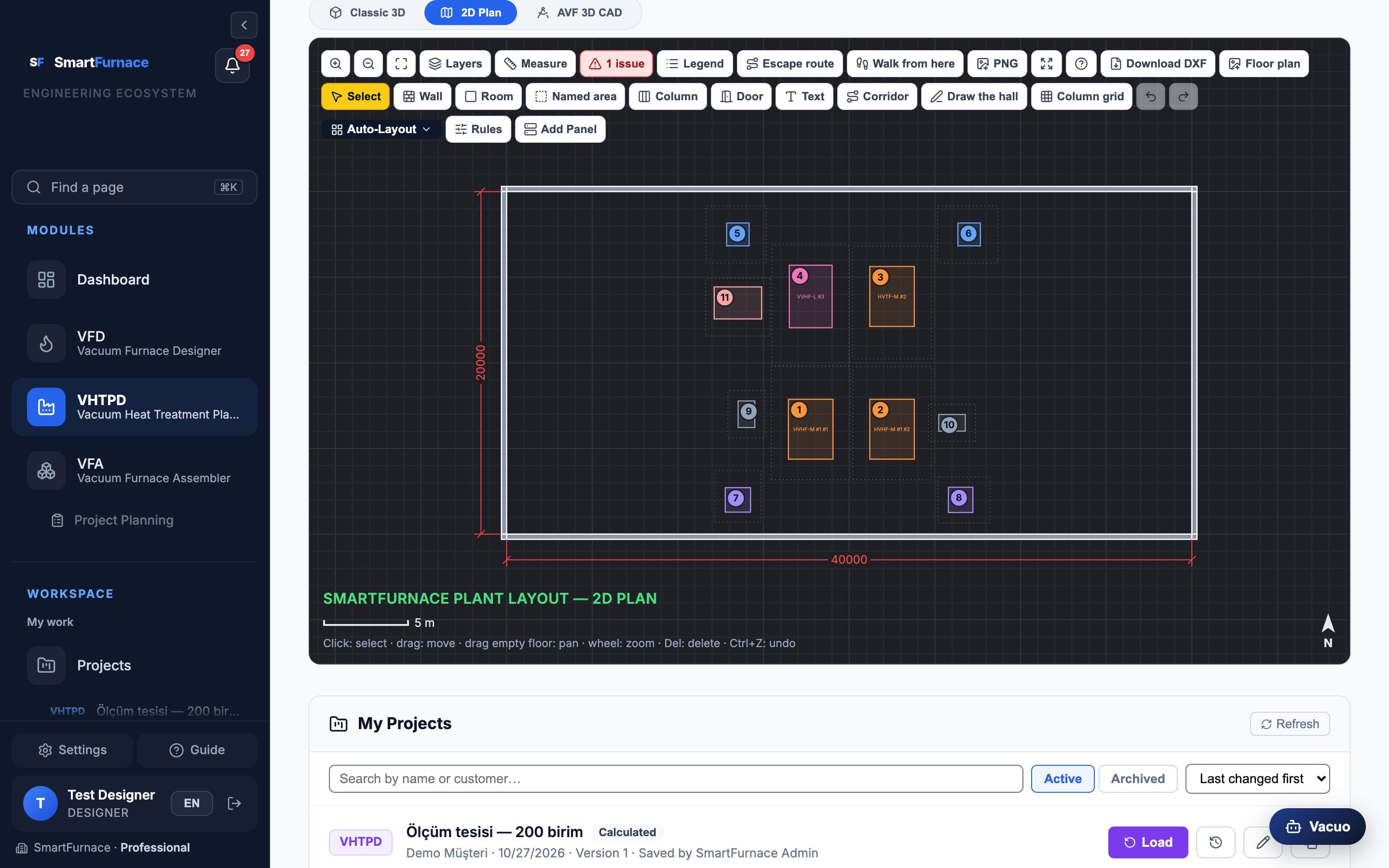
- L’onglet Plan 2D montre l’installation comme un dessin de CAO : le hall et ses murs hachurés, les machines colorées par type et numérotées (les mêmes numéros que le tableau du PDF), les dimensions du hall en mm et la distance de la machine sélectionnée aux murs pendant que vous la déplacez.
- Dessinez l’intérieur du hall : Mur, Pièce (Avec ses murs ou sans), Zone nommée, Poteau, Porte et Texte. Les angles s’accrochent aux angles, aux lignes des murs et aux angles droits (Maj libère) ; tapez un nombre puis Entrée pour donner sa longueur au côté suivant.
- Choisissez le vantail d’une porte (simple, double, coulissante, sectionnelle, rideau métallique) et son sens d’ouverture (Vers l’extérieur ou Vers l’intérieur) dans son panneau ; une porte peut aussi se placer sur un mur intérieur. Trame de poteaux place un poteau à chaque croisement de l’entraxe saisi ; Plan d’étage… pose le DXF de l’architecte ou une image sous le hall, et Mesurer en règle l’échelle ; le plan est enregistré avec l’installation (les blocs et les hachures du DXF sont dessinés aussi).
- Les murs et les poteaux comptent dans les règles : l’implantation automatique n’y place aucune unité, le contrôle des chevauchements les voit et la distance d’évacuation se mesure en contournant les murs et en passant par les portes.
- La 3D Classique et le Plan 2D sont la même installation : ce que vous faites dans l’une — dessiner (Dessiner le bâti en 3D), déplacer, modifier par un angle, supprimer, annuler — se fait aussi dans l’autre et s’y voit ; l’élément sélectionné le reste quand vous changez d’onglet.
- Clavier dans la vue 3D et le Plan 2D : Ctrl+C / Ctrl+V / Ctrl+D copient, collent et dupliquent murs, pièces, poteaux et textes (aussi d’une vue à l’autre) ; les flèches déplacent la sélection ; ? liste toutes les commandes.
Votre bâtiment a un poteau tous les 6 mètres : dans le Plan 2D, saisissez l’entraxe dans Trame de poteaux et les poteaux se placent à chaque croisement. L’implantation automatique ne place aucune unité sur les poteaux ni sur les murs, et si vous y déplacez un four plus tard, la liste des problèmes le signale.
VHTPD — Résultats, modèles et exports
Une fois l’installation calculée : les types de systèmes, les modèles, le transfert depuis VFD et les scénarios, les rapports et les plans, et la vue CAO.
Résultats, modèles et vue CAO
- Types de systèmes : refroidissement, réservoir tampon, transformateur (un transformateur existant n’ajoute aucun coût de transformateur) et système de chargement — automatique, ou à votre choix ; une ligne saisie par vous dans la liste des équipements auxiliaires remplace le choix de son type. Les lignes automatiques suivent chaque calcul.
- Partir d'un modèle ouvre une installation publiée par les administrateurs, celle de votre entreprise ou la vôtre ; Enregistrer comme modèle garde l’installation affichée comme modèle — ou remplace un modèle que vous pouvez modifier.
- Depuis une conception VFD, Transférer au Planificateur apporte ses fours avec l’alliage, l’option (A ou B) d’un résultat trempe + revenu dont ils viennent, la classe et le type AMS 2750, et le remplissage de la charge. Flotte selon l'objectif propose les fours pour un objectif journalier.
- Comparer des scénarios garde jusqu’à quatre variantes de l’installation avec elle — chacune calculée à part, imprimée dans le PDF, et reprise dans l’installation avec Appliquer ce scénario.
- Le Rapport PDF, le DXF (CAO 2D) (calques colorés, dimensions du hall cotées, cartouche), la Nomenclature et l’image du Plan 2D (PNG) demandent un résultat à jour : après une modification, ou pour une installation calculée avec des règles plus anciennes, recalculez d’abord. Le Résumé de l’implantation sous les résultats donne le contrôle d’implantation du PDF.
- L’onglet AVF CAO 3D ouvre l’installation enregistrée dans la vue CAO : ce que vous y déplacez — ainsi que les machines ajoutées ou supprimées, ou le contour du hall modifié là-bas — revient dans l’installation (une suppression après votre confirmation). Une installation que vous ne pouvez que consulter (lecteur de l’entreprise, offre sans VHTPD, quelqu’un d’autre y travaille) s’ouvre en lecture seule dans tous les onglets. La vue CAO est incluse dans le forfait Professional. Avec le forfait Client, un espace de travail garde une installation — les installations archivées comptent : une nouvelle installation ne se calcule que tant que l’espace n’en a aucune, les suivantes s’ouvrent en lecture seule, le PDF, le DXF et la nomenclature sont réservés à celle-ci, et l’on peut partir d’un modèle sans pouvoir en enregistrer.
- Marcher, dans la barre de 3D Classique, vous fait descendre dans le hall à hauteur des yeux : Z Q S D (W A S D en QWERTY) ou ↑ ↓ pour marcher, ← / → pour tourner (Maj plus vite), glisser pour regarder, Échap ou Arrêter de marcher pour retrouver la vue 3D. Murs, poteaux, équipements, zones interdites et portes fermées vous arrêtent ; E ouvre ou ferme la porte devant vous. Les murs extérieurs sont pleins et vous restez dans le hall. Une mini-carte montre où vous êtes : un clic vous y emmène. Le Plan 2D marque « Vous êtes ici » ; Marcher d’ici puis un clic sur le plan lance la marche à cet endroit. Possible aussi en lecture seule ; inclus dans les forfaits avec le planificateur d’installation — pour l’instant à la souris et au clavier.

VFA — Assembleur de four sous vide
Un modèle 3D interactif des fours horizontal et vertical. Chaque pièce se sélectionne et a sa propre fiche : ce qu’elle est, son stock, et le moyen de poser une question ou de la commander.
Commandes
- Horizontal / Vertical — changez de modèle ; le curseur de vue éclatée écarte les pièces selon leur sens de montage.
- Cliquez sur une pièce pour la sélectionner ; faites glisser pour tourner, la molette pour zoomer, le clic droit en glissant pour déplacer la vue.
- Les outils de vue : angles de caméra, coupe, mesure, rayons X, une image de la vue et un lien qui ouvre la même vue.
- Sur la fiche d’une pièce : son stock et les fournisseurs qui l’ont, Envoyer une Question, Demander un Devis, l’ajouter au panier, ou demander à être prévenu de son retour en stock.
Vous sélectionnez une vanne en rupture et demandez à être prévenu de son retour. Elle apparaît dans « Pièces que je suis » dans les Paramètres, et vous recevez une notification quand le stock est mis à jour.

Planification de projet
Une fois votre four commandé, la Planification de projet le suit étape par étape : dates prévues et réelles, sous-étapes, documents, liste de contrôle, échanges avec l’équipe SmartFurnace et les essais de réception que vous approuvez.
Ce que vous pouvez faire
- Voir le statut et les dates de chaque étape ; filtrer les étapes en retard, en cours, en attente de votre approbation, ou les messages non lus.
- Télécharger les documents partagés et voir la liste de contrôle de chaque étape.
- Écrire à l’équipe depuis le projet ; les nouveaux messages restent signalés jusqu’à leur lecture.
- Approuver ou refuser un essai de réception en usine ou sur site (FAT / SAT) — un refus demande une note.
- Ouvrir votre modèle de four dans l’assembleur 3D depuis le projet.
L’équipe vous demande d’approuver l’essai de réception en usine. Vous recevez un e-mail et une notification ; l’étape reste « en attente d’approbation » jusqu’à ce que vous l’approuviez ou la refusiez avec une note.

Carnet de bord
Un carnet de service pour les fours en service, en deux onglets : un journal des incidents et les plans de maintenance avec l’historique de chaque intervention.
Incidents
- Signalez un incident : le four, le composant si vous le connaissez, ce qui s’est passé et sa gravité.
- Suivez son statut pendant que l’équipe le traite : ouvert, en analyse, en attente de pièces, résolu, clôturé.
- Ajoutez des notes et des fichiers tant qu’il est ouvert ; une fois résolu ou clôturé, il reste tel quel, comme un enregistrement propre.
Maintenance
- Chaque plan apparaît En retard, Bientôt dû ou À jour, selon sa prochaine date.
- Vous êtes prévenu une semaine avant une maintenance, et de nouveau si elle est en retard.
- Ouvrez un plan pour voir toutes les maintenances passées ; Ajouter au calendrier (.ics) place les prochaines dates dans votre calendrier.


Projets enregistrés
Chaque conception VFD et chaque installation VHTPD que vous enregistrez se trouve ici — vos conceptions, à part du suivi de commande de la Planification de projet.
Ce que vous y trouvez
- Ouvrez un projet pour le recharger avec toutes ses données ; renommez-le, archivez-le ou restaurez-le.
- Chaque enregistrement garde une version : nommez une version, ajoutez une note, comparez-en deux côte à côte, ou ouvrez-en une plus ancienne.
- Dans l’espace de travail d’une entreprise, vos collègues voient les mêmes projets. Pendant qu’une personne modifie un projet, il est verrouillé pour les autres, et un lecteur ne peut que lire.

Demandes de devis
Demandez un devis pour une pièce depuis VFA ou le catalogue de pièces, puis suivez-le ici. Les demandes de devis de four venant de VFD ont leur propre onglet.
Les statuts d’un devis de pièce
| Statut | Signification |
|---|---|
| En attente de validation | Vient d’être envoyé — un administrateur SmartFurnace le regarde avant un fournisseur. Vous pouvez encore l’annuler. |
| En attente du fournisseur | Approuvé ; le fournisseur l’a. Vous pouvez le retirer. |
| Devis du fournisseur reçu | Prix, délai et date de validité sont là (parfois une offre en PDF) — acceptez ou refusez. |
| Terminé | Vous avez accepté l’offre. |
| Refusé / clôturé | Sans suite — par l’administrateur ou le fournisseur, avec un motif. |
Vous avez demandé la même pièce à plusieurs fournisseurs ? « Comparer » aligne leurs offres côte à côte, la moins chère et la plus rapide étant signalées.

Paramètres et équipe
Votre compte se trouve dans les Paramètres ; dans l’espace de travail d’une entreprise, la page Équipe gère ses membres.
Ce que vous y trouvez
- Profil, mot de passe, connexion en deux étapes et déconnexion de tous les appareils.
- Notifications par e-mail, les pièces que vous suivez, une copie ou la suppression de vos données, et devenir fournisseur. Mon forfait affiche votre forfait et vos demandes d’abonnement.
- Équipe : invitez des collègues par e-mail avec un rôle (administrateur, concepteur, lecteur — un lecteur ne peut que lire), changez les rôles et passez d’un espace de travail à l’autre. Le propriétaire peut transmettre l’espace de travail à un membre.

Vacuo — l’assistant d’ingénierie
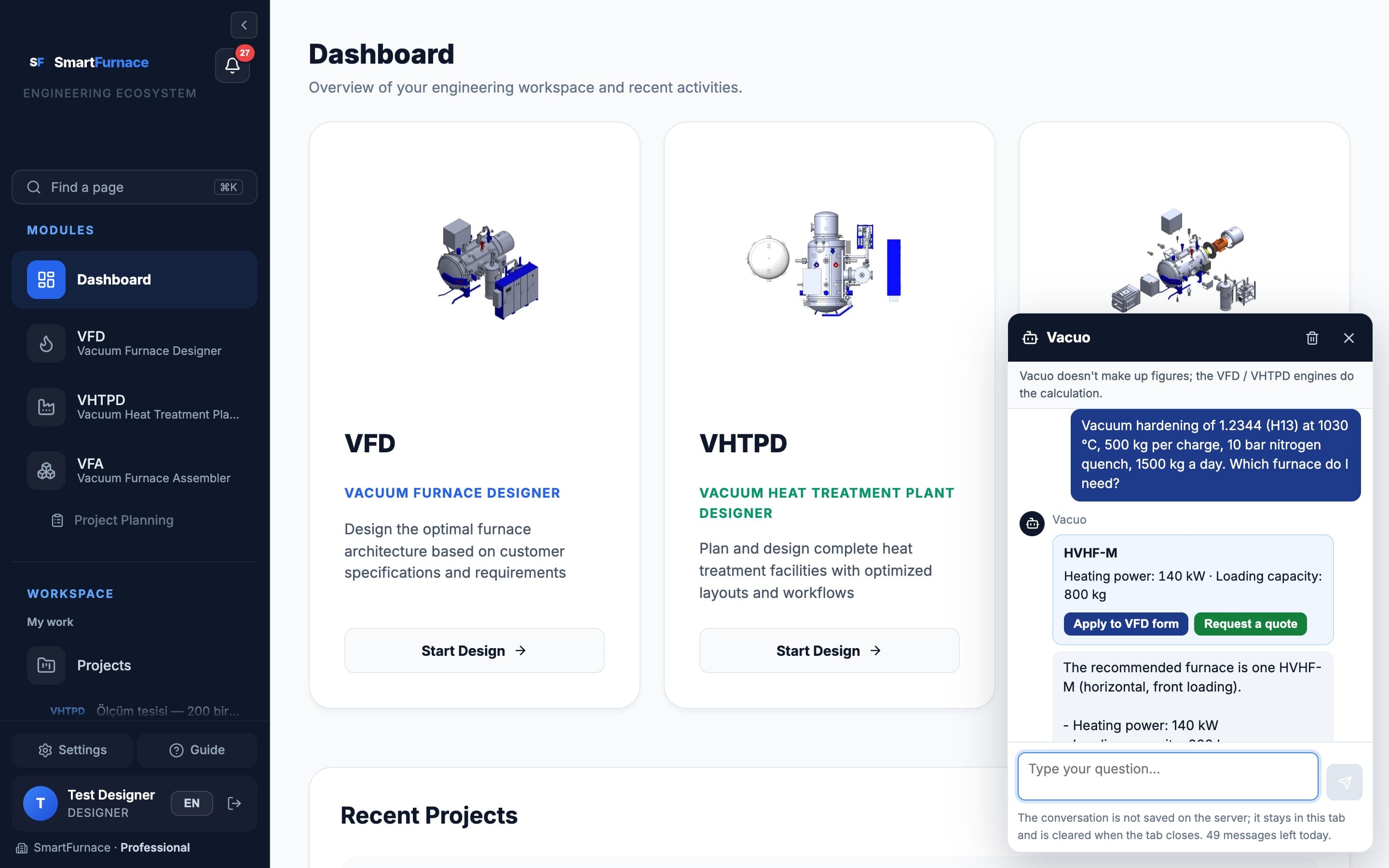
Vacuo répond aux questions sur les fours sous vide, le traitement thermique et la plateforme, dans votre langue. Ouvrez-le avec le bouton Vacuo en bas à droite de chaque page. Il n’invente pas de chiffres : les moteurs VFD et VHTPD font le dimensionnement, Vacuo explique le résultat.
Comment ça marche
- Appuyez sur Vacuo et écrivez votre question avec vos mots — pour un four le procédé, l’alliage, la température, le poids de charge et la pression de trempe ; pour une usine les fours et l’objectif journalier.
- S’il manque une donnée, Vacuo vous la demande. Il ne calcule qu’avec les valeurs que vous avez écrites, jamais avec des valeurs « typiques ».
- La réponse arrive avec une carte : le résultat du moteur et des boutons comme Appliquer au formulaire VFD, Charger l'usine dans VHTPD, Demander un devis, Ajouter au panier ou Afficher en 3D.
- Rien n’est enregistré ni envoyé tant que vous n’avez pas appuyé sur le bouton, puis enregistré ou envoyé dans l’écran qu’il ouvre.
Ce qu’il sait faire d’autre
- Vos dossiers : l’état de vos demandes de devis et de vos commandes, l’offre la moins chère ou la plus rapide pour une même pièce, la maintenance en retard, les dernières pannes, vos conceptions enregistrées et ce qui est nouveau pour vous.
- Carnet de bord : décrivez une panne et Vacuo prépare la fiche — Ouvrir la fiche de panne remplit le formulaire ; vous la vérifiez et l’enregistrez. Il cite aussi les pièces à contrôler (une liste à vérifier, pas un diagnostic).
- Implantation VHTPD : avec une usine enregistrée ouverte, demandez si son implantation pose problème. Vacuo vérifie l’implantation enregistrée comme le fait le rapport PDF ; Corriger déplace une unité vers la place libre la plus proche (Annuler la remet ; enregistrez l’usine pour la garder).
- Guide et documents : les questions « comment faire… » trouvent leur réponse dans ce guide, avec Ouvrir dans le guide ; les rapports et manuels que nous partageons sont cités avec les numéros de page et Ouvrir le document.
- Fournisseurs : un fournisseur approuvé interroge Vacuo sur les demandes qui lui sont transmises et reçoit un brouillon de note d’offre — Ouvrir dans le formulaire d’offre ; le prix, le délai et la validité sont écrits par le fournisseur.
Bon à savoir
| Sujet | Fonctionnement |
|---|---|
| Votre conversation | Elle n’est pas enregistrée sur nos serveurs. Elle reste dans l’onglet du navigateur jusqu’à sa fermeture ou jusqu’à Effacer la conversation. |
| Messages par jour | Le nombre de messages par jour est limité ; le panneau indique combien il en reste aujourd’hui. Les questions toutes prêtes d’une conversation vide ne comptent pas. |
| Vos données | Votre message, et les dossiers que Vacuo lit pour y répondre, sont envoyés au fournisseur d’IA ; les coûts d’usine ne le sont jamais. Le détail figure dans la Politique de confidentialité. |
| Demandes hors sujet | Vacuo ne répond que sur les fours, le traitement thermique et la plateforme. Après des demandes hors sujet répétées, il reste fermé pour le reste de la journée. |
Vous écrivez l’alliage, la température, le poids de charge, la pression de trempe et l’objectif journalier. Vacuo lance le moteur VFD et affiche le modèle avec sa puissance de chauffe et sa capacité de charge ; si l’objectif exige une charge plus grande, il indique aussi combien de fours il faut si la charge reste celle que vous avez saisie. Appliquer au formulaire VFD ouvre le formulaire avec ces données ; Demander un devis ouvre la fenêtre de devis avec ce résultat.
Les forfaits, l’essai et votre abonnement
Votre forfait décide des modules ouverts. Paramètres → Mon forfait l’affiche — son nom, son état (Essai, Actif, Paiement en retard, Gratuit), sa date de fin et les jours restants — avec vos demandes d’abonnement. Pas de paiement par carte sur le site : un abonnement se paie sur facture, par virement bancaire, et le prix figure sur la facture.
Les forfaits
| Forfait | Ce qu’il ouvre |
|---|---|
| Gratuit | VFD avec un nombre limité de calculs et de projets enregistrés, VFA, le catalogue de pièces, les demandes de devis et les commandes. |
| Client | Fourni avec un four acheté chez nous ; il ne s’achète pas par abonnement. Le Carnet de bord, la Planification de projet, VHTPD pour une usine et des projets illimités — pour tous les membres de l’espace de travail quand son propriétaire l’a. |
| Professional | Par abonnement, par personne : VHTPD sans limite d’usines (avec la vue CAO), le Carnet de bord et des projets illimités. |
| Fournisseur | Une voie à part : le portail fournisseur appartient à l’entreprise fournisseur, pas au forfait de l’utilisateur. Une entreprise de pièces peut prendre le portail seul, ou avec Professional. |
L’essai gratuit
- Un nouveau compte reçoit une fois Professional gratuit pendant 30 jours, à partir de son approbation — un compte qui rejoint sur invitation aussi, sauf si son espace de travail a le forfait Client. Un fournisseur approuvé reçoit le portail pour la même durée. Pendant l’essai, la barre latérale affiche les jours restants.
- Un e-mail arrive 7 jours et 1 jour avant la fin.
- À la fin, le compte passe au forfait Gratuit : rien de ce que vous avez enregistré n’est supprimé, et les limites du forfait Gratuit comptent à partir de ce jour. Les produits d’un fournisseur quittent le catalogue et aucune nouvelle demande n’arrive ; il peut encore répondre 14 jours aux demandes déjà reçues.
- Un abonnement demandé pendant l’essai commence à sa fin — aucun jour d’essai n’est perdu.
Demander un abonnement
- Ouvrez Paramètres → Mon forfait et appuyez sur Demander un abonnement. Le lien Passer au supérieur de la barre latérale et les e-mails de l’essai ouvrent le même formulaire.
- Choisissez le forfait (Professional ou Fournisseur), Mensuel ou Annuel, et pour Professional le nombre de personnes — plus d’une : le forfait s’ouvre pour des membres de votre espace de travail, indiquez-les dans la note.
- Remplissez les données de facturation : la raison sociale, le centre des impôts et le numéro fiscal ou le numéro de TVA, l’adresse de facturation (Remplir depuis mes adresses) et l’e-mail auquel envoyer la facture ; un numéro de bon de commande va dans la note. Appuyez sur Envoyer la demande.
- Nous vous envoyons la facture par e-mail (le formulaire indique sa devise et la société qui l’émet) ; vous la payez par virement. Sous Vos demandes, la demande passe de Reçue à Facture envoyée puis à Ouverte ; d’ici là, vous pouvez la Retirer.
- Quand le paiement arrive, le forfait s’ouvre avec sa date de fin et vous recevez un e-mail.
Le renouvellement et la date de fin
- 14, 7 et 1 jours avant la date de fin, un e-mail arrive avec un bouton Renouveler : il ouvre le même formulaire, rempli. Les 14 derniers jours, la barre latérale affiche les jours restants.
- Sans paiement à la date de fin, le forfait reste ouvert 7 jours de plus en Paiement en retard, puis passe au forfait Gratuit (le portail d’un fournisseur se ferme ; il peut encore répondre 14 jours à ses demandes).
- Je ne renouvelle pas arrête les rappels : le forfait se ferme à sa date de fin, sans les 7 jours. Je renouvelle finalement les fait revenir.
Enterprise pour une entreprise
Enterprise, c’est Professional pour une entreprise : le forfait appartient à l’espace de travail, avec un nombre de sièges, et son propriétaire décide qui travaille avec un siège. Les modèles VHTPD et les recettes VFD de l’entreprise sont partagés dans l’espace de travail et son logo figure sur les rapports PDF à côté du nôtre. Il est vendu à l’année ; le prix vient avec un devis.
Comment fonctionne Enterprise
- Le propriétaire de l’espace de travail le demande dans Paramètres → Mon forfait avec Demander Enterprise : uniquement à l’année, au moins 2 sièges. À réception du paiement, le forfait s’ouvre sur l’espace de travail et le propriétaire occupe le premier siège.
- Sur la page Équipe, le propriétaire attribue un siège à un membre (Attribuer un siège) ou le retire (Retirer le siège) — jamais plus de sièges que ceux achetés. Le membre est prévenu par e-mail et dans les notifications.
- Un membre avec un siège dispose, lorsqu’il travaille dans cet espace, de tout ce que contient Professional et de la Planification de projet. Un membre sans siège garde son propre forfait et voit quand même les modèles et recettes que l’entreprise partage.
- Les modèles et recettes enregistrés dans l’espace de travail restent partagés comme avant. Le propriétaire et les titulaires d’un siège peuvent en rendre un personnel (Rendre personnel — seul son auteur le voit alors) et le partager à nouveau (Partager avec l’entreprise).
- Le propriétaire téléverse le logo de l’entreprise dans Paramètres → Logo de l’entreprise sur les rapports (PNG ou JPG, 1 Mo au plus). Les rapports VFD, VHTPD et VFA des titulaires d’un siège l’affichent à côté du nôtre.
- La date de fin fonctionne comme pour tout abonnement : des e-mails de renouvellement au propriétaire, 7 jours de Paiement en retard, puis les sièges se ferment et chaque membre revient à son propre forfait. Rien de ce qui a été enregistré n’est supprimé.